Since the last round-up, Multi Room Audio Player has gained two features that change what it can be connected to — audio now arrives from Apple devices, and any zone can go out as an internet radio station. Here’s what landed.
AirPlay Input — Apple Devices Play Into Your Zones
AirPlay has been part of Multi Room Audio Player since 2016, and in MZAP 7 it is rebuilt: an AirPlay input turns a zone into an AirPlay receiver, so an iPhone, iPad or Mac can play straight into it.
Pick the zone in the AirPlay menu on your phone and whatever you’re playing — a music app, a video, a call — lands in that zone and flows through the usual routing, EQ and volume. It’s the quickest way to hand a guest DJ the room, or to get a phone’s audio into a venue without a cable.
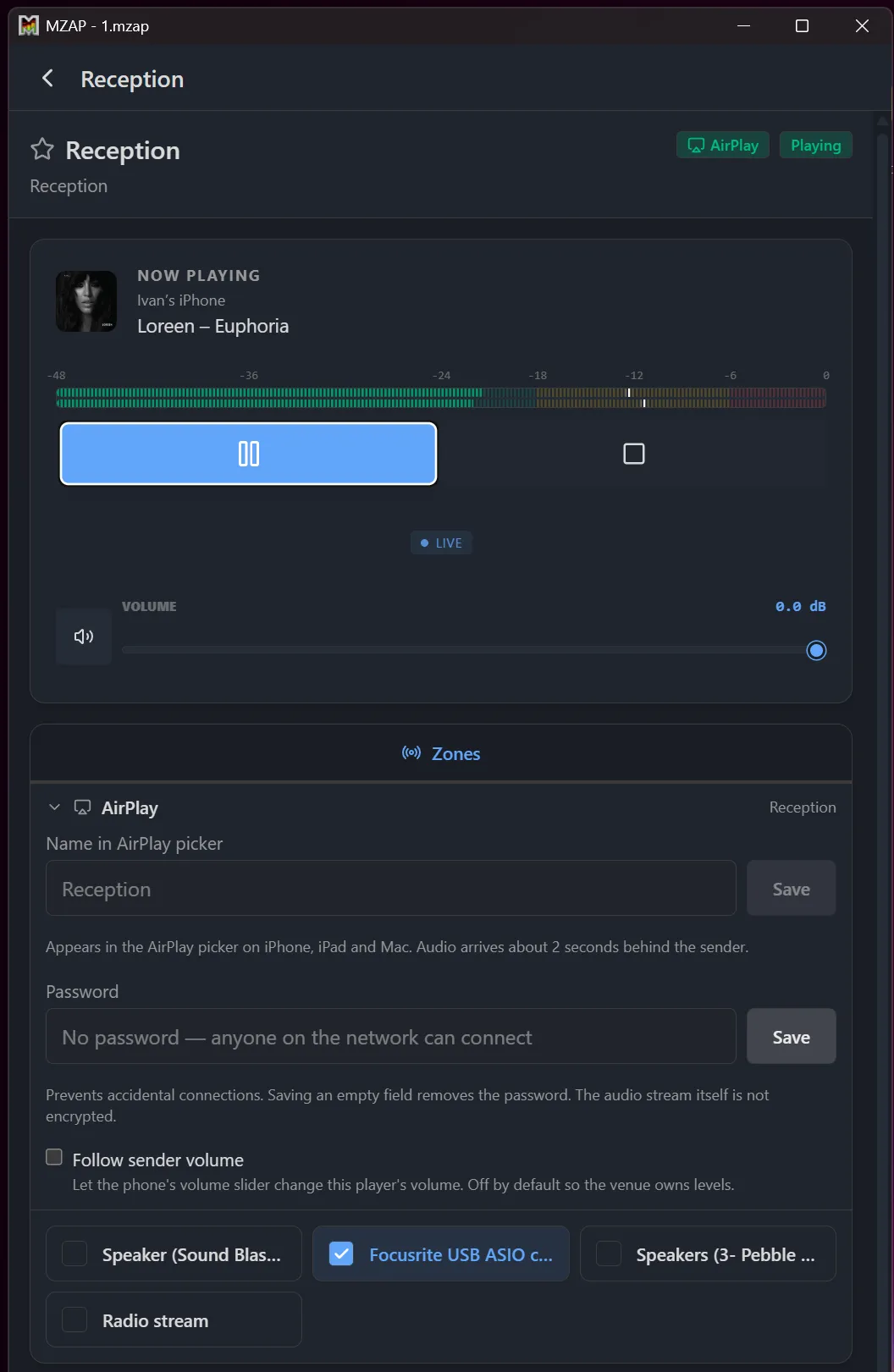
Each input gets its own advertised name — the label people see in the AirPlay picker — and an optional password, which puts a lock icon next to it on iOS and stops accidental connections from anyone on the network. The password guards the connection; it doesn’t encrypt the audio.
Follow sender volume is off by default, so the phone’s volume buttons don’t touch your levels — the venue keeps control. Turn it on when you want the sender to drive the fader.
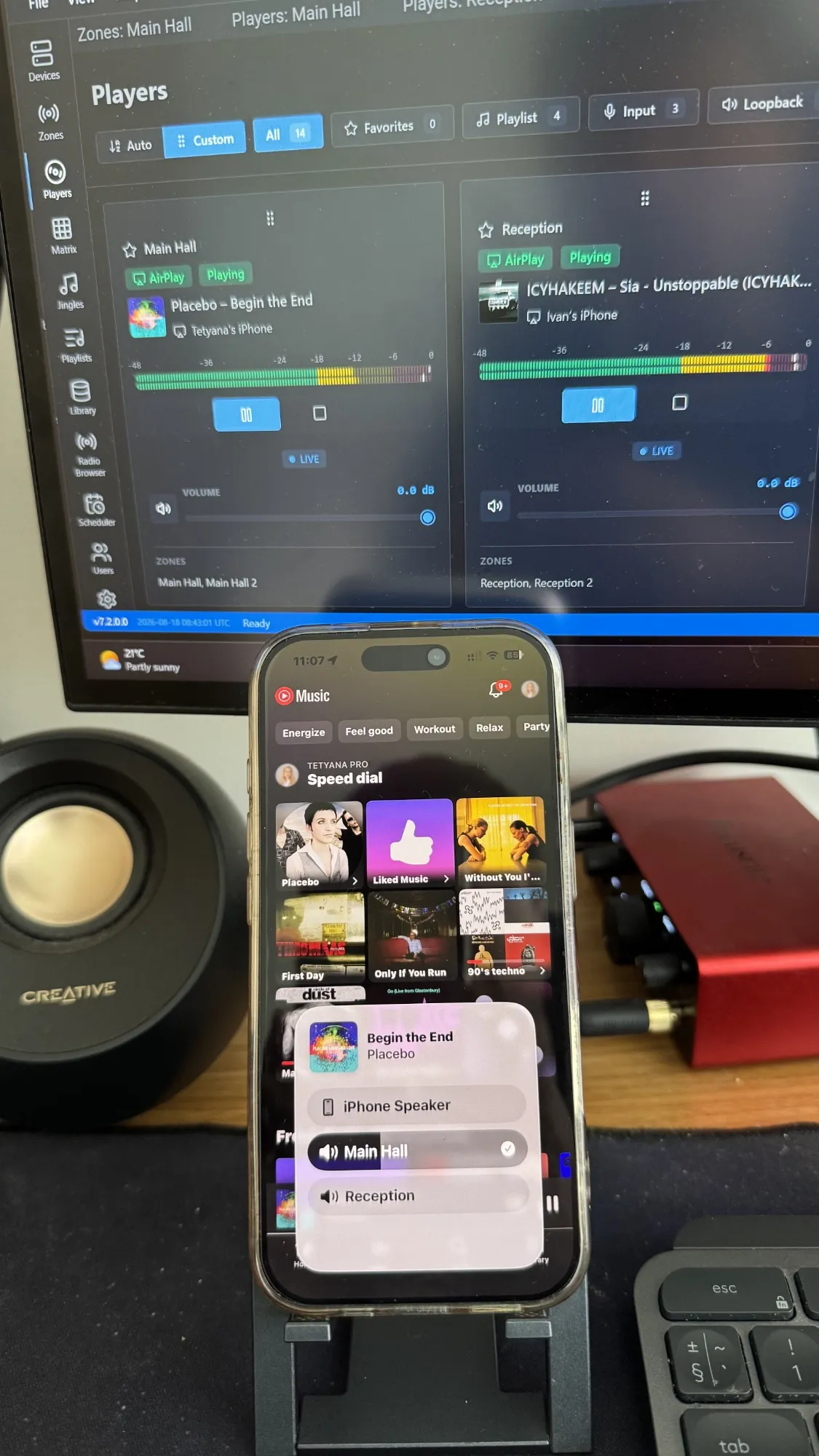
Two details worth knowing up front: audio arrives about two seconds behind the sender, which is inherent to how AirPlay buffers, and one sender at a time — a second device trying to join gets a busy signal. This is classic AirPlay (RAOP) audio, so it covers the Apple devices you already have, without AirPlay 2’s multi-room grouping.
Streaming Zones — Broadcast a Zone as Internet Radio
A streaming zone takes everything playing in a zone and broadcasts it as an internet radio station, so people can listen on a phone, a browser, or any media player that opens a stream URL.
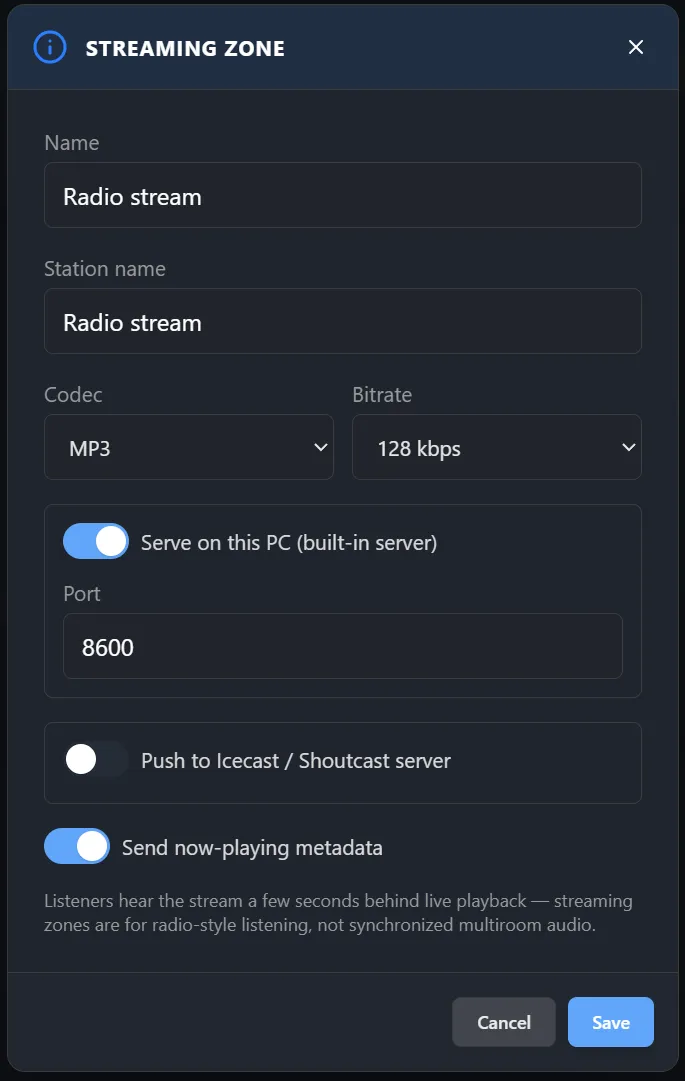
Choose MP3, which plays on virtually anything, or Opus for better quality at the same bitrate on modern clients, anywhere from 32 to 320 kbps. Then pick how it reaches listeners: the built-in server hands the stream out directly from the PC on a port of your choosing — nothing else to install — or push to an Icecast or Shoutcast server when you need to reach the open internet or a large audience.
One important caveat, and we’d rather say it plainly: a streaming zone is radio-style listening, not synchronized multiroom audio. Listeners hear the stream a few seconds behind live, so don’t feed speakers in the same room from both a streaming zone and a device zone — they’ll be audibly out of step. For sound in one physical space, use device zones.
Zones You Define Yourself
Zones used to follow your audio hardware. Now you create them as you need them — build a zone around a device, a channel, or a channel pair, name it after the room it actually serves, and order the list to match how you think about the building rather than how Windows enumerates devices.
Steadier Live Audio
A run of changes aimed at installs that play unattended for weeks:
- Stream-outage failover — when an internet radio source drops, playback moves on and returns to the live stream automatically once it’s back;
- Microphone auto-ducking — music steps down on its own while someone speaks, and comes back up after;
- Professional VU meters with dBFS thresholds and peak-hold, plus stereo level meters showing left and right independently;
- A configurable stream stall timeout, so a stalled source is dropped on your schedule rather than a fixed one.
Finer Control Over Outputs
- Per-device output mode — run each device in WASAPI Shared or Exclusive as it suits, instead of one setting for the whole system;
- Stereo input pairs for ASIO devices, so a stereo source off an ASIO interface stays stereo;
- Stop After This Track, for ending a set cleanly on the last song.
Plus
The built-in MCP server now authenticates and respects user roles, so an AI assistant reaching the player gets only the access you granted it. The interface picked up seven more languages — Polish, Lithuanian, Vietnamese, Slovak, Czech, Bulgarian and Japanese — and works properly on a phone screen throughout. Volume can be set in decibels over the API, and the scheduler’s daily and weekly tasks now honour seconds.
Already running MZAP 7? Update to the latest build and the new zone types are waiting in the zone editor. New here? Download Multi Zone Audio Player and try it. As always, tell us what you’d like to see next.