Sie können Multi Room Audio Player über die REST API sowie über die Kommandozeile mit Konsolenbefehlen steuern. Starten Sie zunächst die Hauptsoftware, dann finden Sie das Fernsteuerungsprogramm mzap5cmd.exe im selben Ordner C:\Program Files (x86)\Multi Room Audio Player 5
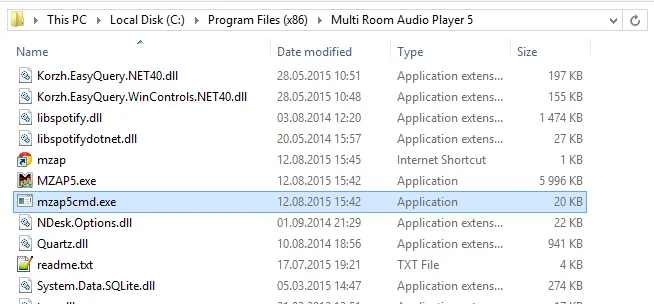
Alle Konsolenparameter haben leicht verständliche Namen. Wenn Sie Fragen oder Anregungen haben, hinterlassen Sie bitte unten einen Kommentar. Bitte führen Sie mzap5cmd.exe –h für die Hilfe aus.
Verwendung: mzap5cmd [OPTIONS]
Optionen:
-p, –player=NAME Player-NAME.
-z, –zone=NAME Zonen-NAME
-a, –action=NAME Aktions-NAME.
-o, –option=NAME Optionen, Dateiname oder URL-NAME.
-h, –help Hilfe anzeigen
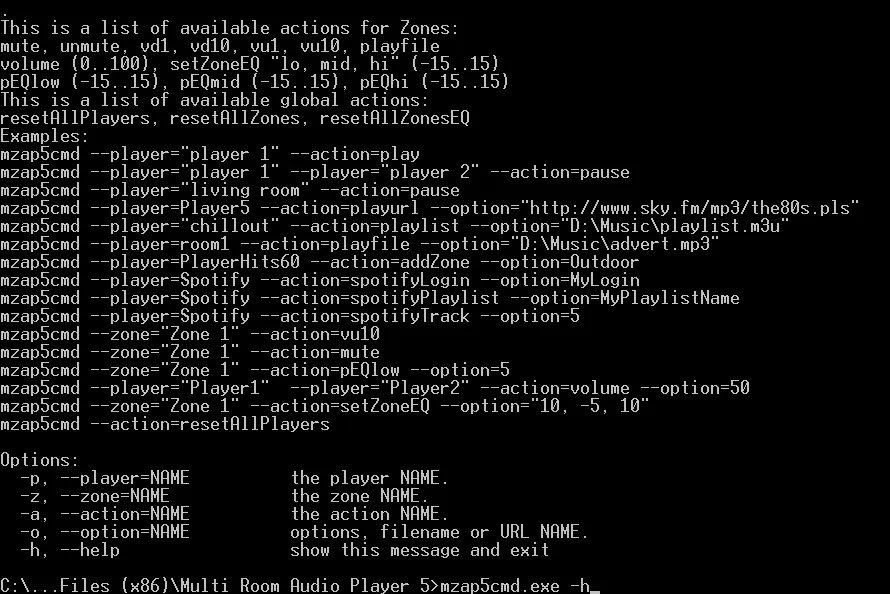
Dies ist eine Liste der verfügbaren Player-Aktionen:
stop, play, pause, prev, next, mute, unmute, playfile, playlist, playurl,
vd1, vd10, vu1, vu10, volume (0..100), addZone, removeZone, clearPlaylist
spotifyLogin, spotifyPassword, spotifyKeyPath, spotifyLogon, spotifyPlaylist, spotifyTrack.
Dies ist eine Liste der verfügbaren Zonen-Aktionen:
mute, unmute, vd1, vd10, vu1, vu10, volume (0..100),
setZoneEQ „lo, mid, hi“ (-15..15), pEQlow (-15..15), pEQmid (-15..15), pEQhi (-15..15)
Dies ist eine Liste der verfügbaren globalen Aktionen:
resetAllPlayers, resetAllZones, resetAllZonesEQ
Beispiele:
Player steuern
mzap5cmd –player=”player 1″ –action=play
mzap5cmd –player=”living room” –action=pause
mzap5cmd –player=Player5 –action=playurl –option=”http://www.sky.fm/mp3/the80s.pls”
mzap5cmd –player=”chillout” –action=playlist –option=”D:\Music\playlist.m3u”
mzap5cmd –player=room1 –action=playfile –option=”D:\Music\advert.mp3″
mzap5cmd –player=Player1 –action=addZone –option=”Zone 2″
mzap5cmd –player=Player1 –action=removeZone –option=”Zone 2″
Zone steuern
mzap5cmd –zone=”Zone 1″ –action=vu10 (Lautstärke um 10 Punkte erhöhen)
Spotify-Player steuern
mzap5cmd –player=Spotify –action=spotifyLogin –option=yourLogin
mzap5cmd –player=Spotify –action=spotifyPassword –option=yourPassword
mzap5cmd –player=Spotify –action=spotifyKeyPath –option=”D:\spotify_appkey.key”
mzap5cmd –player=Spotify –action=spotifyPlaylist –option=PlaylistName
mzap5cmd –player=Spotify –action=spotifyTrack –option=5
mzap5cmd –player=Spotify –action=spotifyLogon