Please start Multi Room Audio Player and go to the Tools menu, click on the Settings and select Remote tab. Please turn on “Enable remote control” checkbox. You can’t specify an address, this is your computer local address, but you can change a port. After changing the Port, please click “Restart” button.
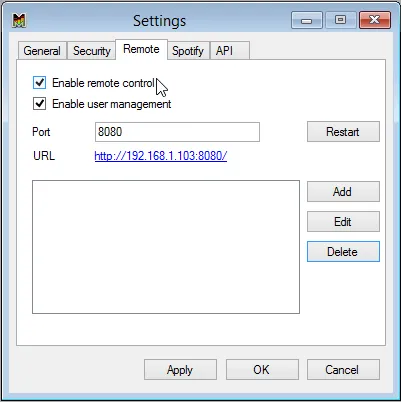
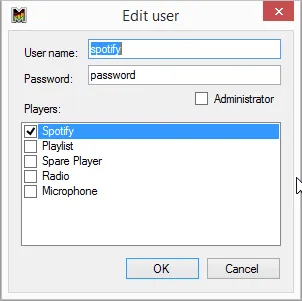
If you want to limit your users to control players, turn on “Enable user management” and create users. Please press “Add” button to create new user. For each user you must provide a username, password and select appropriate players.
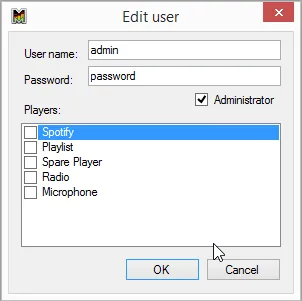
In order to create an administrator, user who can access all players, please enable “Administrator” checkbox.
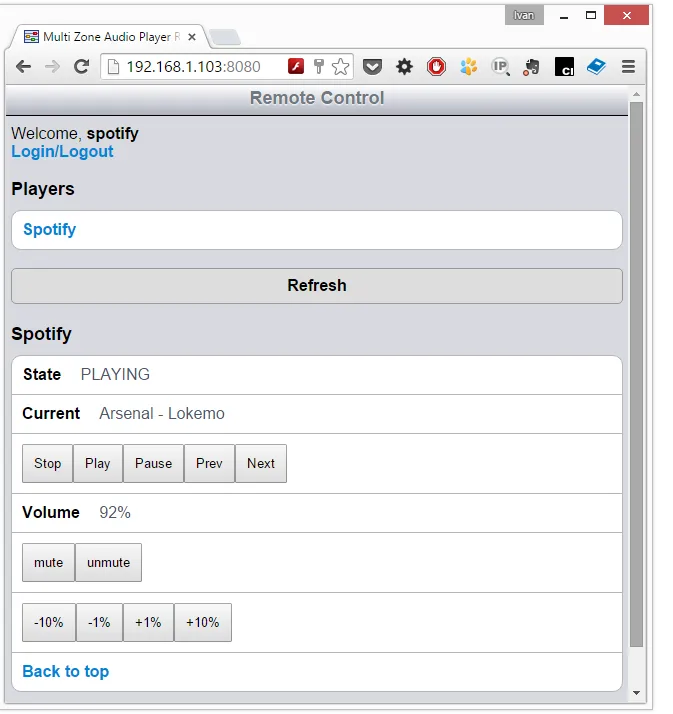
Please click on the blue URL or simply type this URL in the any mobile device connected to same local network. If you enabled “User Management” please use your credentials to login.
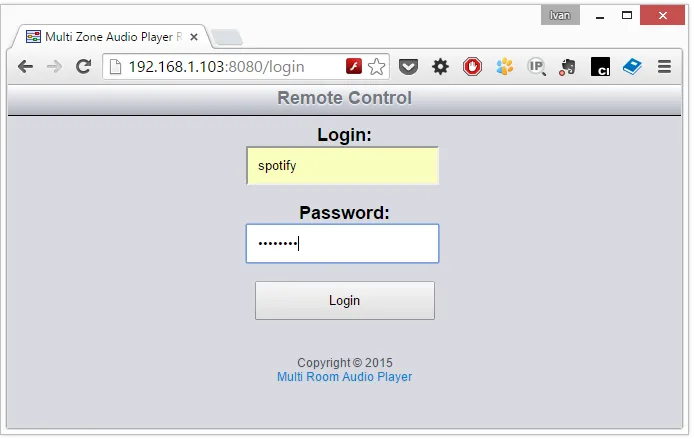
Now you can control Multi Room Audio Player remotely from anyplace.